API Documentation
Complete guide to integrating with the Vaachas API
Works with Postgres (incl. Supabase), MongoDB (incl. Atlas), Elasticsearch (incl. Bonsai), and Cassandra (incl. DataStax Astra DB).
Vaachas is the operational layer between your app and every datastore you rely on. Ship multi-database workflows without custom routing code, queue plumbing, or ad-hoc credential management. This guide shows how to wire the gateway into your stack in minutes—provision connections, register them once, and call a single HTTP API for writes and reads.
Follow the quickstart to set up databases, register credentials, and issue your first request. Later sections cover payload formats, long-running write tracking, authentication, and operational guardrails so you can plug Vaachas into production services with confidence.
Base URL
https://api.vaachas.comDrop the custom glue
Central API instead of bespoke queue and worker code.
One request, many databases
Sync the primary and secondaries with ordered writes.
Operate with guardrails
API keys, retries, and status polling built in.
Include your API key using the X-API-KEY header for all requests.
Example Request
curl -X POST "https://api.vaachas.com/api/data/v1/direct"   -H "Content-Type: application/json"   -H "X-API-KEY: YOUR_API_KEY"   -d '{
  "dbId": "YOUR_DB_ID",
  "query": "SELECT * FROM products"
}'- Provision or pick databases you want to use.
- Create schema in your provisioned databases.
- Find your provider connection credentials (host/port/user/db or connection string).
- Register those databases in Vaachas.
- Generate an API key.
- Test requests in the browser using Developer Tools.
Step 1 — Provision databases (or use existing)
Bring an existing cluster or pick any managed option. Vaachas supports most PostgreSQL, MongoDB, Cassandra, and Elasticsearch providers out of the box.
Managed Postgres with full compatibility for host/port or connection string modes.
Deploy a managed MongoDB cluster or connect your self-hosted deployment.
Fully managed Cassandra with Secure Connect bundle support for Vaachas integrations.
Provision managed Elasticsearch and capture the endpoint URL for your index.
Already have these databases provisioned? Continue to Step 2.
Step 2 — Create schema in your provisioned DBs
Run these DDL commands in your provider consoles or your own DB clients. Do not run them via Vaachas.
Step 3 — Find your connection credentials
Locate host/port/database/username/password or the connection string in your provider console. Some providers like Mongo atlas require whitelisting IPs for access. So, if required whitelist this IP on provider for flawless functioning - 51.222.62.168/29
SupabaseAtlasBonsaiAstra DBStep 4 — Register your databases in Vaachas
- Open Dashboard →
Databases(/dashboard/credentials). - Click
Add Database. - Provide
Nameand selectType(POSTGRES, SUPABASE, MONGO, ELASTIC, CASSANDRA). - Add at least one
Connection.HOST_PORT: host, port, username, password, and database/index (Elasticsearch uses Index).CONNECTION_STRING: connection string (Mongo requires database name too).API_KEY: for Astra DB, token + Secure Connect bundle (base64); otherwise API key.
- Save. The database appears in your list with an ID (dbId).
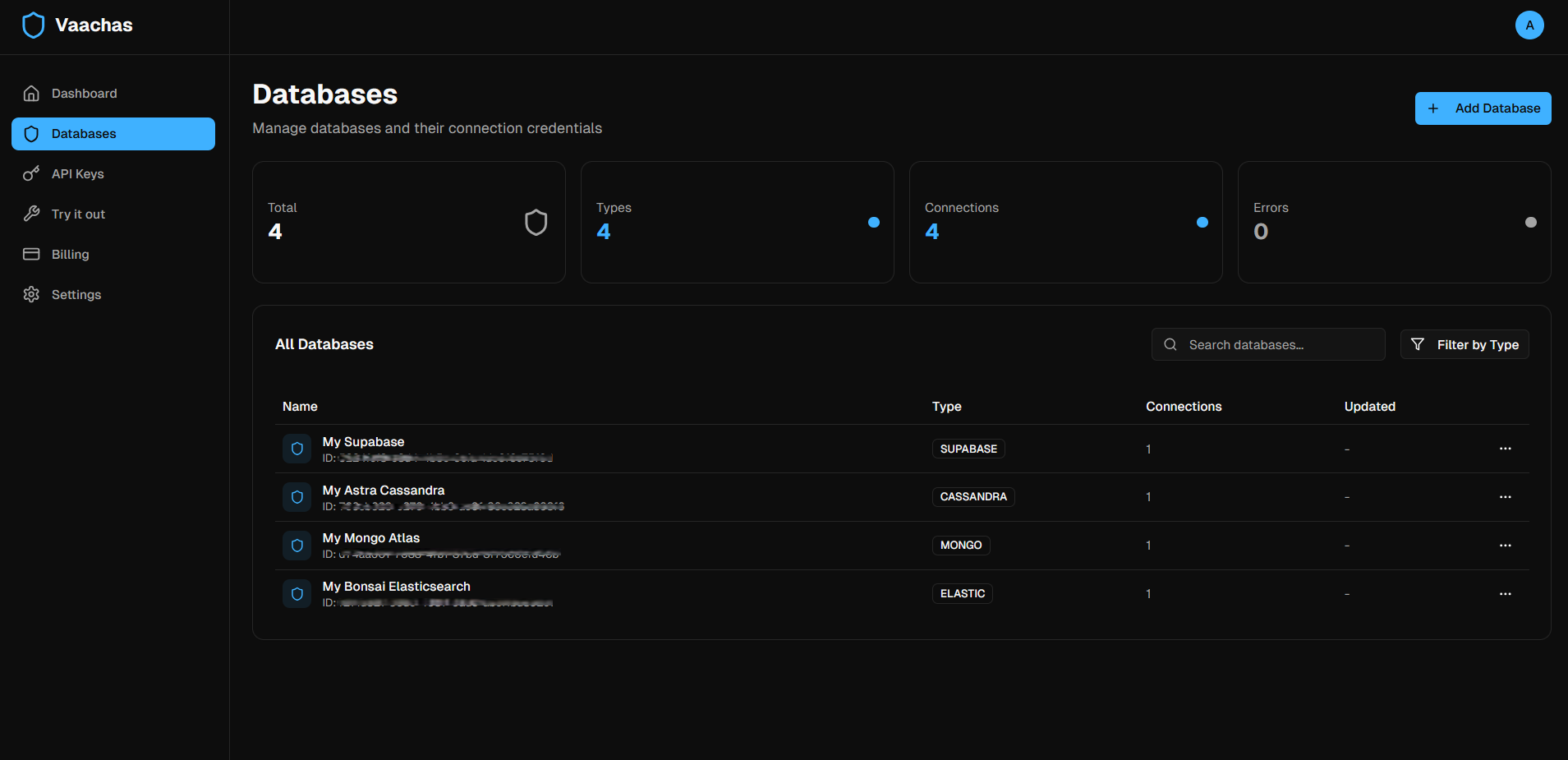
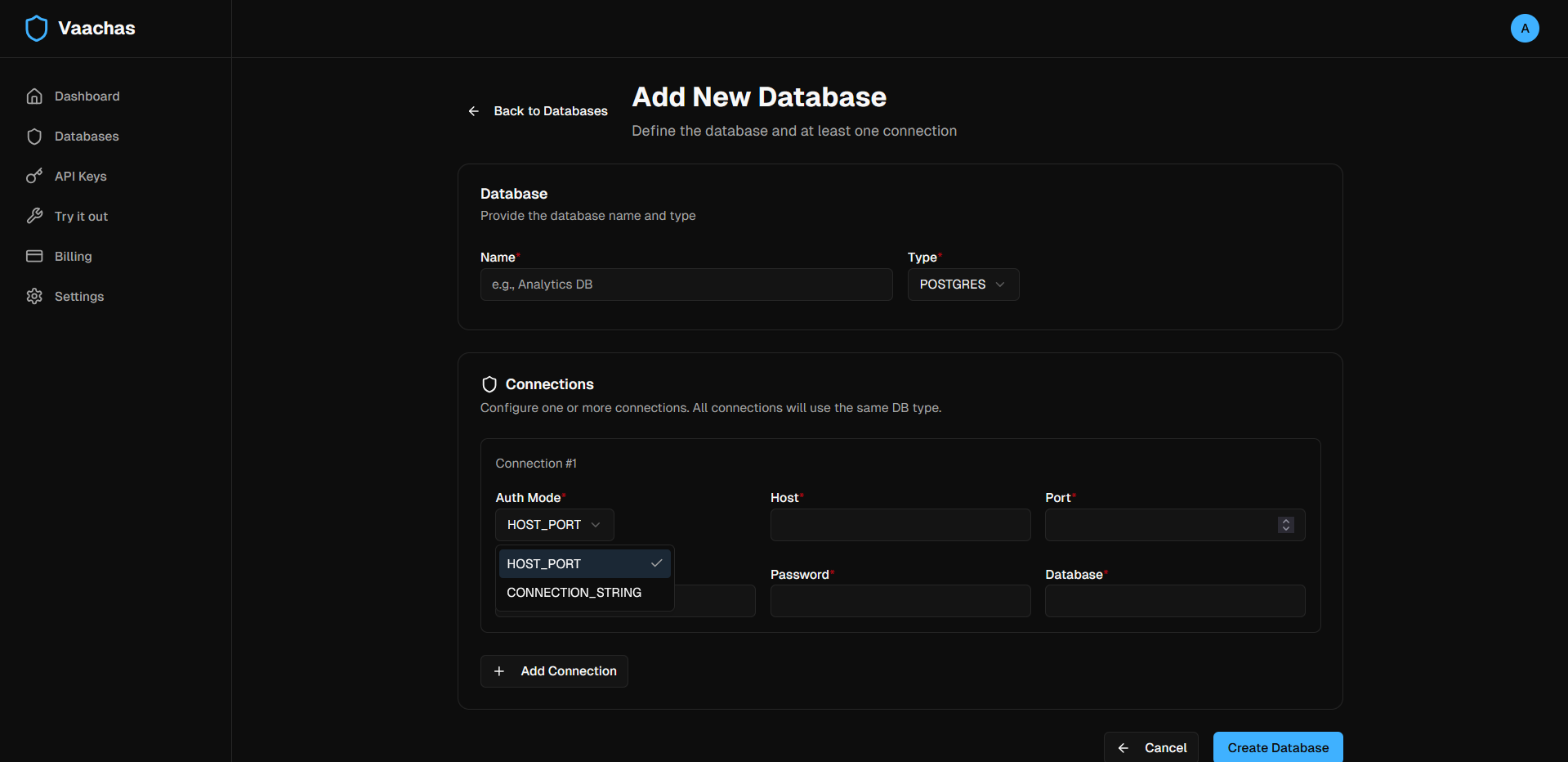
Databases list and Add New Database form.
Step 5 — Generate an API key
- Open Dashboard →
API Keys(/dashboard/api-keys). - Click
Generate API Key, give it a name, set expiration, and create. - Copy the key and store it securely.
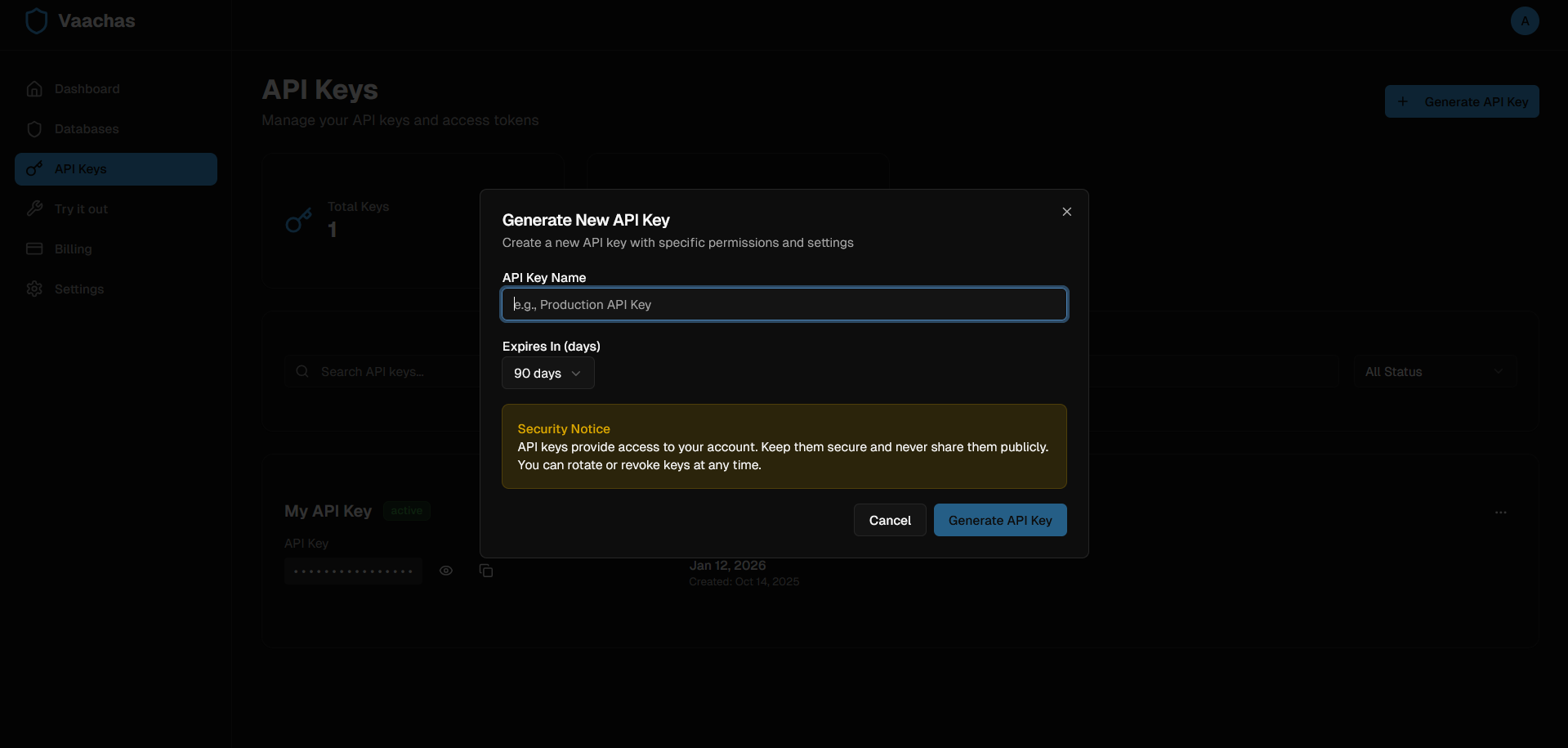
API Keys: Generate API Key modal.
Step 6 — Test requests in Developer Tools
- Open Dashboard →
Developer Tools(/dashboard/developer-tools) →API Testing. - Select
Request Type: Query (read) or Manipulation (write). - Choose or paste your
API Key (X-API-KEY). You can copy/paste queries text in the following diagrams from Requests & Responses. - For Manipulation: Add one or more write commands with target dbs and
sequence. ClickExecute. If a tracking id is returned, useCheck Status. - For Query: Select a
Databaseby dbId and paste a read query. ClickExecute. ViewResponse.
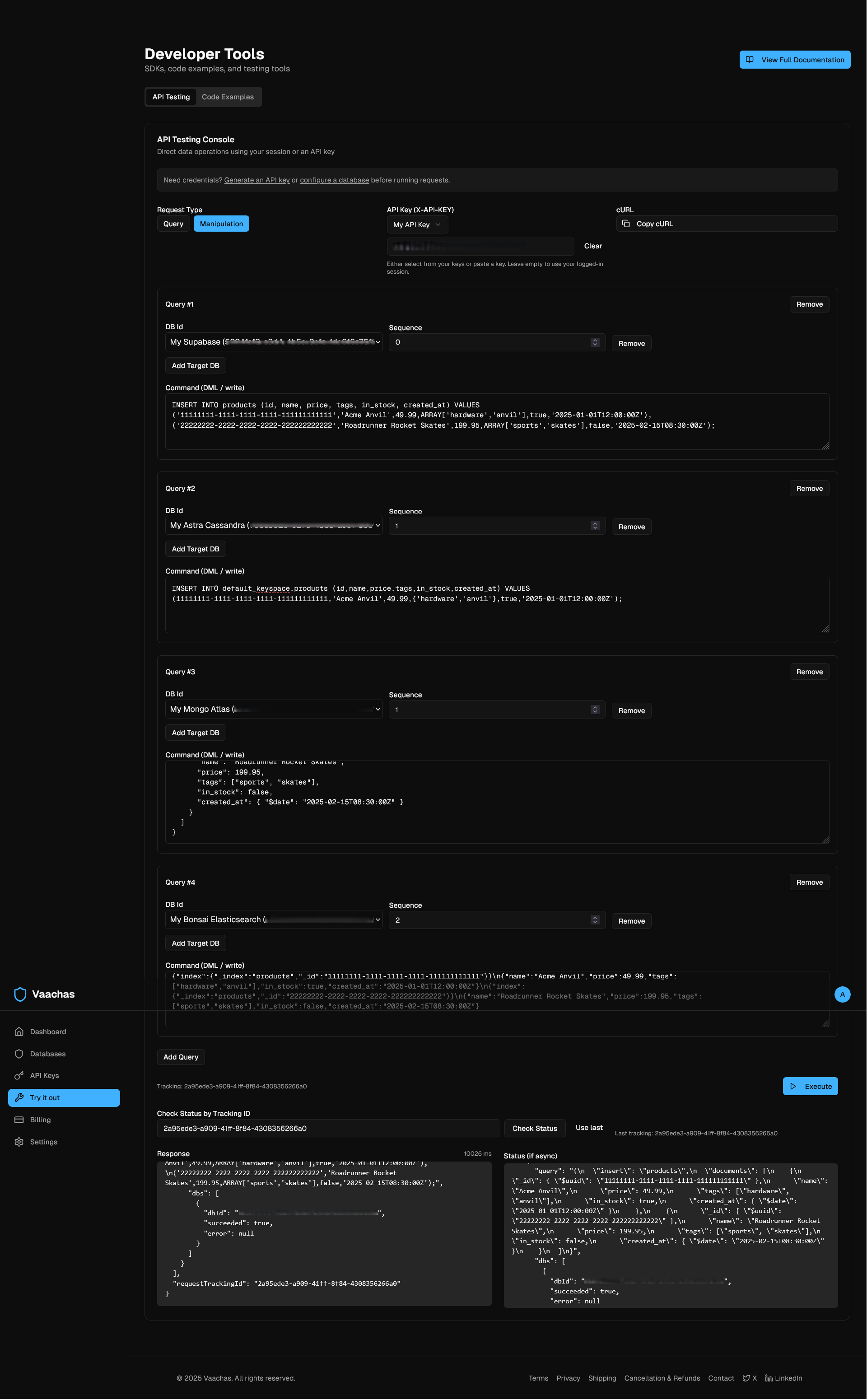
Developer Tools: API Testing Console overview writes.
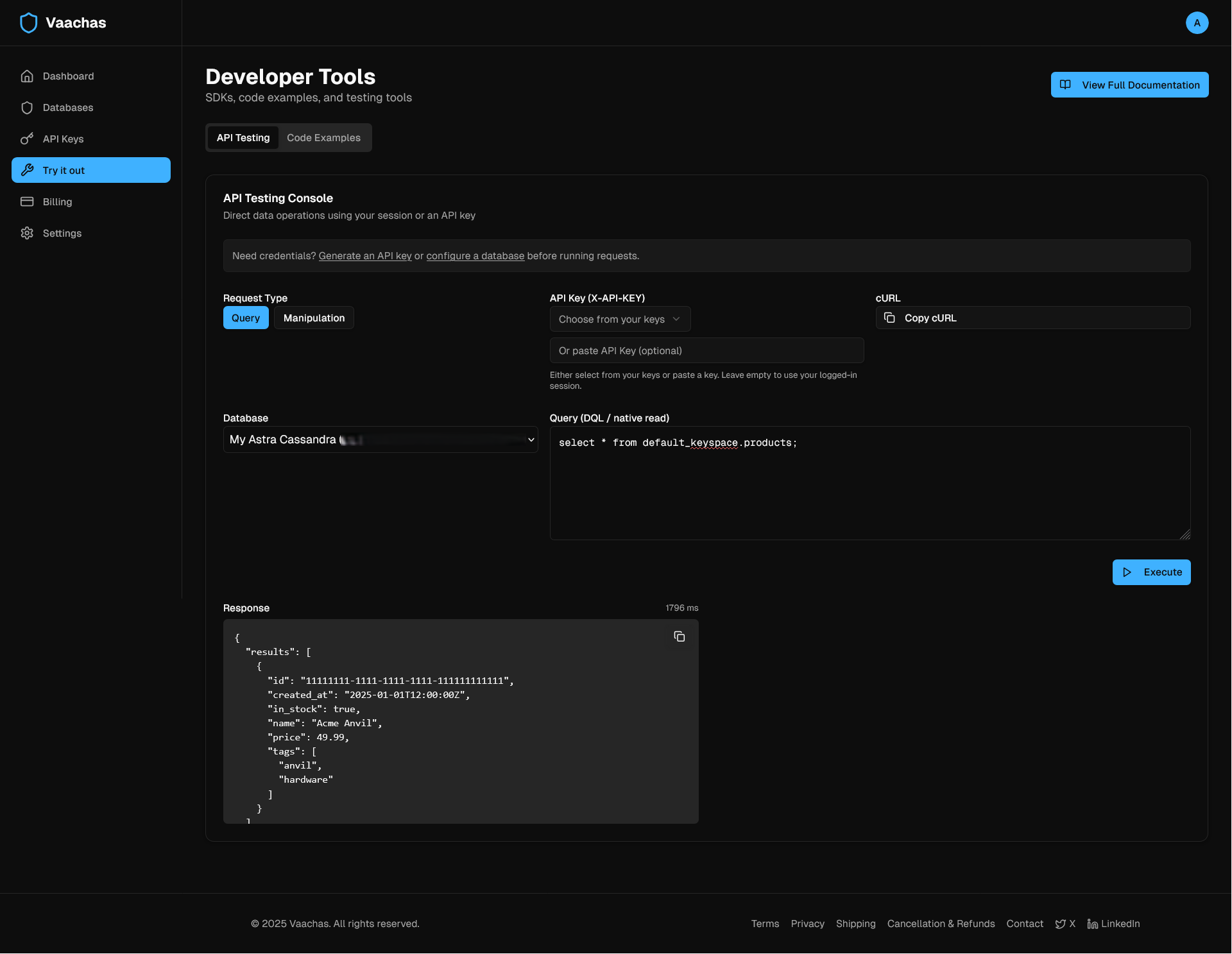
Developer Tools: API Testing Console overview reads.
Copy‑paste queries for Developer Tools
Use any provider. Common starting points:
/api/data/v1/directTwo request shapes are supported:
DirectDbDataManipulationRequest (DML fan‑out)
{
  "queryToDbsMap": {
    "INSERT INTO products (id,name,price) VALUES ('111...','Acme Anvil',49.99)": [
      { "dbId": "supabase", "sequence": 0 },
      { "dbId": "elastic", "sequence": 1 }
    ]
  }
}
sequence 0 runs synchronously; higher sequences continue in the same workflow. Default sequence is 1. Same sequence values run in parallel.
DirectDbDataQueryRequest (DQL read)
{
  "dbId": "supabase",
  "query": "SELECT * FROM products ORDER BY created_at DESC"
}
Responses
DataManipulationResponse (sync)
{
  "queries": [
    {
      "query": "INSERT INTO products (...) VALUES (...)",
      "dbs": [ { "dbId": "supabase", "succeeded": true } ]
    }
  ]
}
DataManipulationResponse (async)
{ "requestTrackingId": "req-123" }DataManipulationResponse (mixed)
{
  "queries": [ { "query": "...", "dbs": [ { "dbId": "supabase", "succeeded": true } ] } ],
  "requestTrackingId": "req-123"
}
DataQueryResponse
{ "results": [{"id":"..."}], "succeeded": true }{ "results": null, "succeeded": false, "error": "details" }Per‑DB status object: { "dbId": string, "succeeded": boolean, "error": string | null }.
cURL examples
DML fan‑out (mixed)
curl -X POST "https://api.vaachas.com/api/data/v1/direct"   -H "Content-Type: application/json"   -H "X-API-KEY: YOUR_API_KEY"   -d '{
    "queryToDbsMap": {
      "INSERT INTO products (id,name,price) VALUES (''11111111-1111-1111-1111-111111111111'',''Acme Anvil'',49.99)": [
        { "dbId": "supabase", "sequence": 0 },
        { "dbId": "elastic", "sequence": 1 }
      ]
    }
  }'
DQL read
curl -X POST "https://api.vaachas.com/api/data/v1/direct"   -H "Content-Type: application/json"   -H "X-API-KEY: YOUR_API_KEY"   -d '{
    "dbId": "supabase",
    "query": "SELECT * FROM products ORDER BY created_at DESC"
}'/api/data/v1/direct/status/{requestTrackingId}Poll the execution status of asynchronous or mixed workflows.
{
  "requestStatus": "RUNNING | COMPLETED | FAILED | TERMINATED | CANCELED | UNKNOWN",
  "queries": [ { "query": "...", "dbs": [ { "dbId": "supabase", "succeeded": true, "error": null } ] } ]
}The Direct API executes your queries against the target engines in their native dialects:
- Postgres (incl. Supabase): SQL
- MongoDB (incl. Atlas): db.runCommand JSON
- Elasticsearch (incl. Bonsai): REST/DSL JSON
- Cassandra (incl. DataStax Astra DB): CQL
API calls are rate‑limited per plan.
/api/v1/ratelimit/meView your current plan and effective rate limit policy.
curl -X GET "https://api.vaachas.com/api/v1/ratelimit/me" -H "X-API-KEY: YOUR_API_KEY"
400 Bad Request — invalid payload
- Cause: JSON shape does not match
DirectDbDataManipulationRequestorDirectDbDataQueryRequest. - Fix: Validate JSON; required fields present; query syntax valid for the target DB.
- Tip: For Mongo/Elasticsearch, send valid command/DSL JSON; for Cassandra/Postgres, send valid CQL/SQL.
403 Forbidden — authentication required
- Cause: Missing or invalid API key.
- Fix: Include
X-API-KEYheader; ensure key is active in/dashboard/api-keys.
404 Not Found — status id
- Cause:
requestTrackingIdis wrong or expired. - Fix: Verify the id returned by the initial request; re-run if necessary.
Per‑DB connection/auth errors
- Symptom: Response shows per‑DB
errorwithsucceeded: false. - Fix: Check connection details in
/dashboard/credentials; verify host/port or connection string, user/password/API key, database/index name, and network access.
Execution model
sequence = 0runs synchronously; its results appear in the immediate response.- Same
sequencevalues run in parallel. - Higher
sequencevalues continue in the same workflow and may complete asynchronously; arequestTrackingIdis returned. Use the Status API to poll.
Handling partial successes
- Check per‑DB statuses:
{ dbId, succeeded, error }. - When a response includes both per‑DB results and a
requestTrackingId, poll until the workflow reaches a terminal state. - Design reads to tolerate missing/lagging targets (e.g., read from a primary source when a replica/index update is pending).
Idempotent writes
- Use stable, deterministic identifiers in your payloads (e.g., product IDs) and prefer upsert semantics where supported.
- Avoid non‑deterministic functions in write statements unless necessary.
- If you implement client‑side retries, ensure your writes are idempotent to prevent duplicates.